📅 Workshifts Calendar
The Workshifts Calendar allows you to plan and monitor workers’ shifts, displaying both scheduling and punches within the same environment.
From this page, you can add, edit, and review weekly shifts.
📋 Calendar view
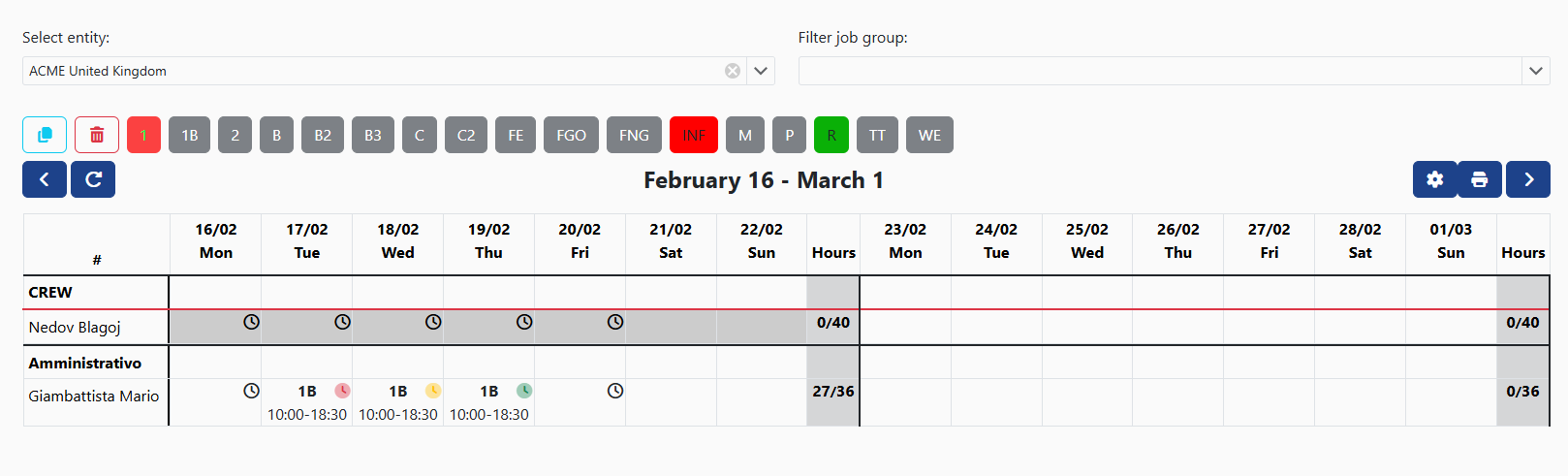
The calendar displays workers grouped by job group and organized on a weekly basis.
For each week, a worked hours summary is also shown, allowing a quick comparison between planned hours and expected hours.
You can filter the view by:
- 🏢 Entity
- 👷 Job group
Filters allow you to display only the portion of the company structure you have access to.
🧰 Calendar commands

At the top of the calendar, the main management and navigation commands are available.
- ⬅️➡️ Side arrows → navigate between calendar weeks
- 🔄 Refresh → reloads the calendar and updates data (e.g., workers, shifts, or assignments added by colleagues)
- ⚙️ Settings → opens calendar display options
- 🖨️ Print / Export PDF → exports the calendar as a PDF optimized for A3 landscape format
The buttons above the calendar represent the available shift types and can be used for quick bulk shift insertion.
🧩 Shift management
You can operate directly on calendar cells to manage shifts.
The following operations are available:
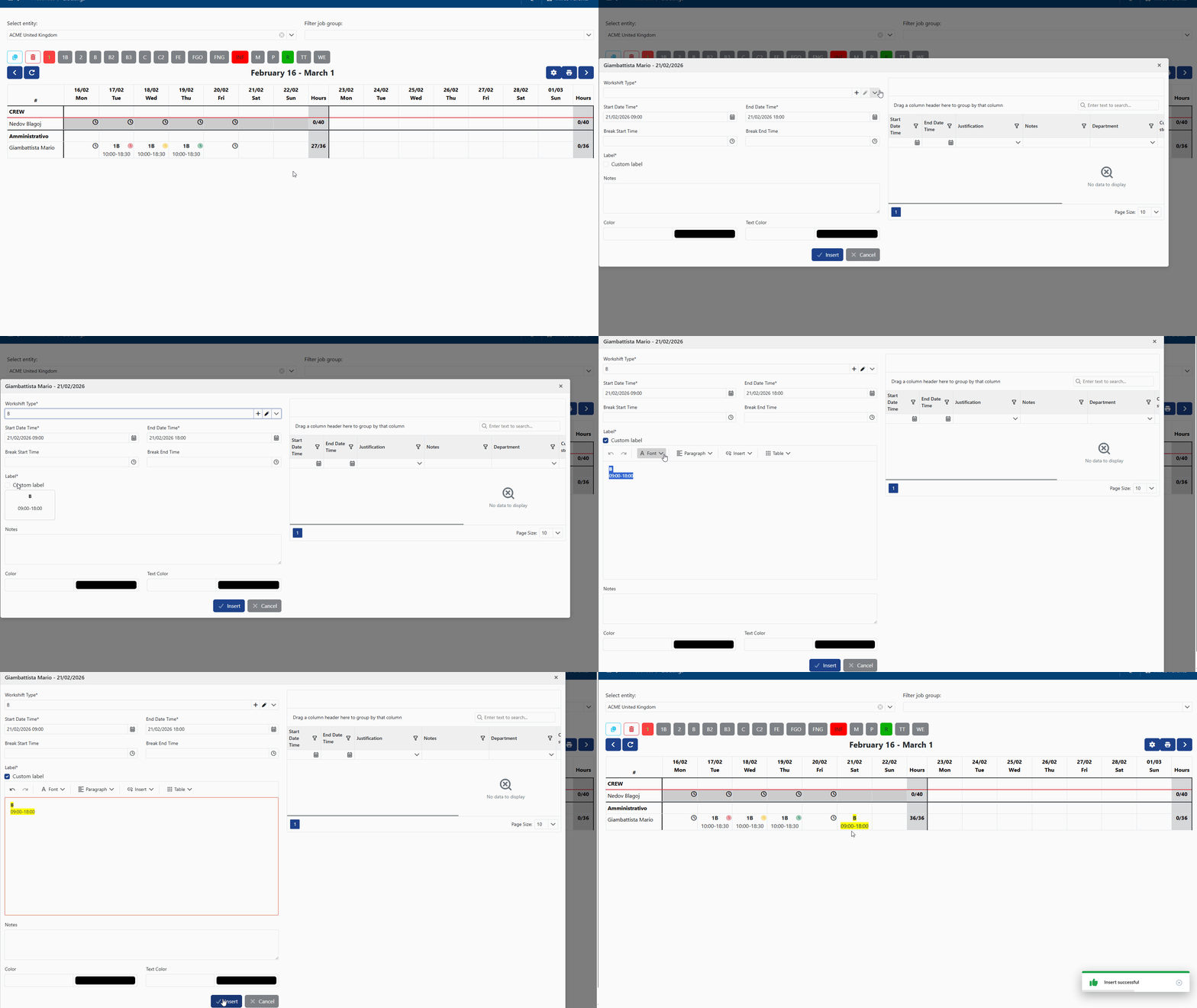
➕ Manual shift insertion
Allows full editing of information, including the label.
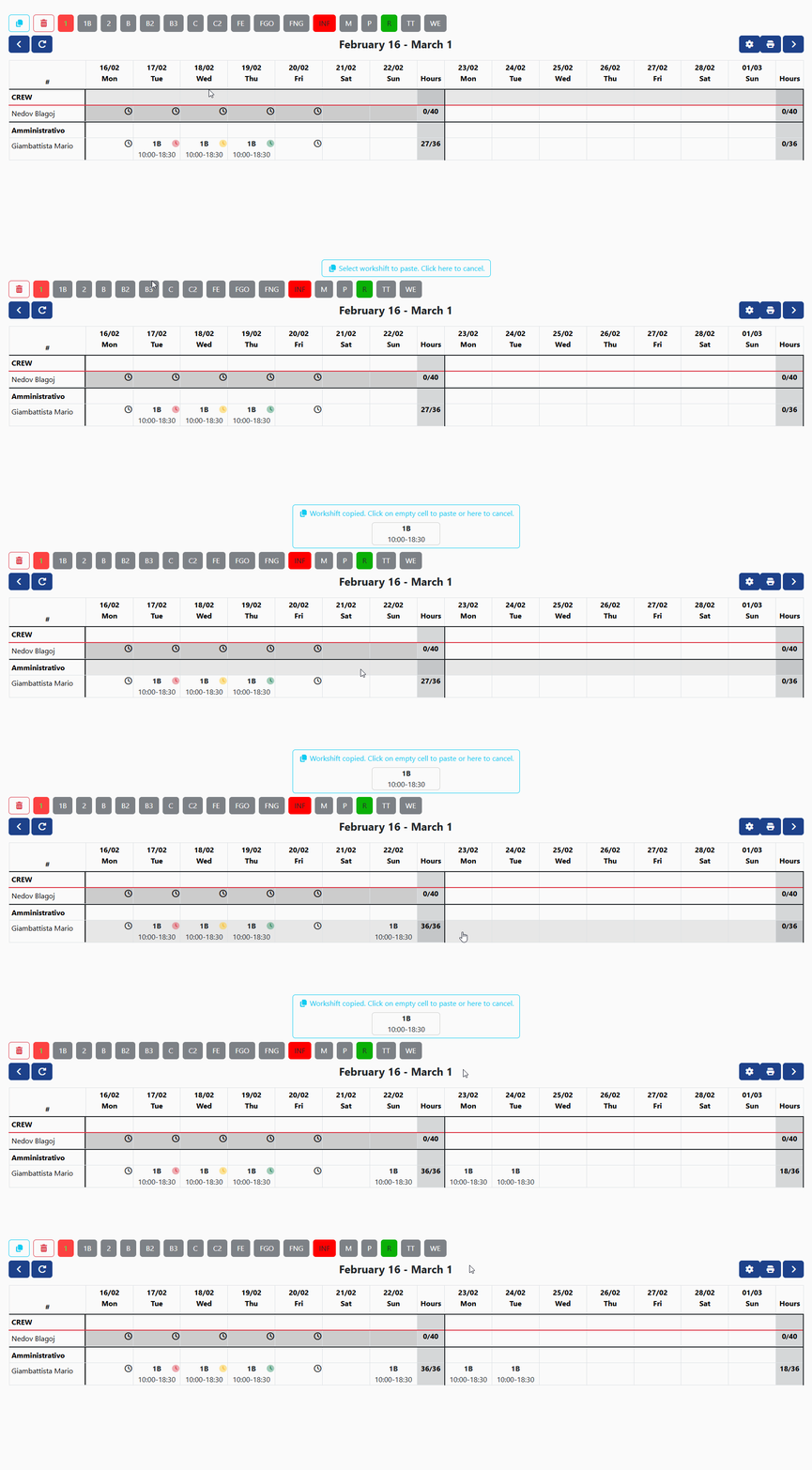
📋 Copy and paste shifts
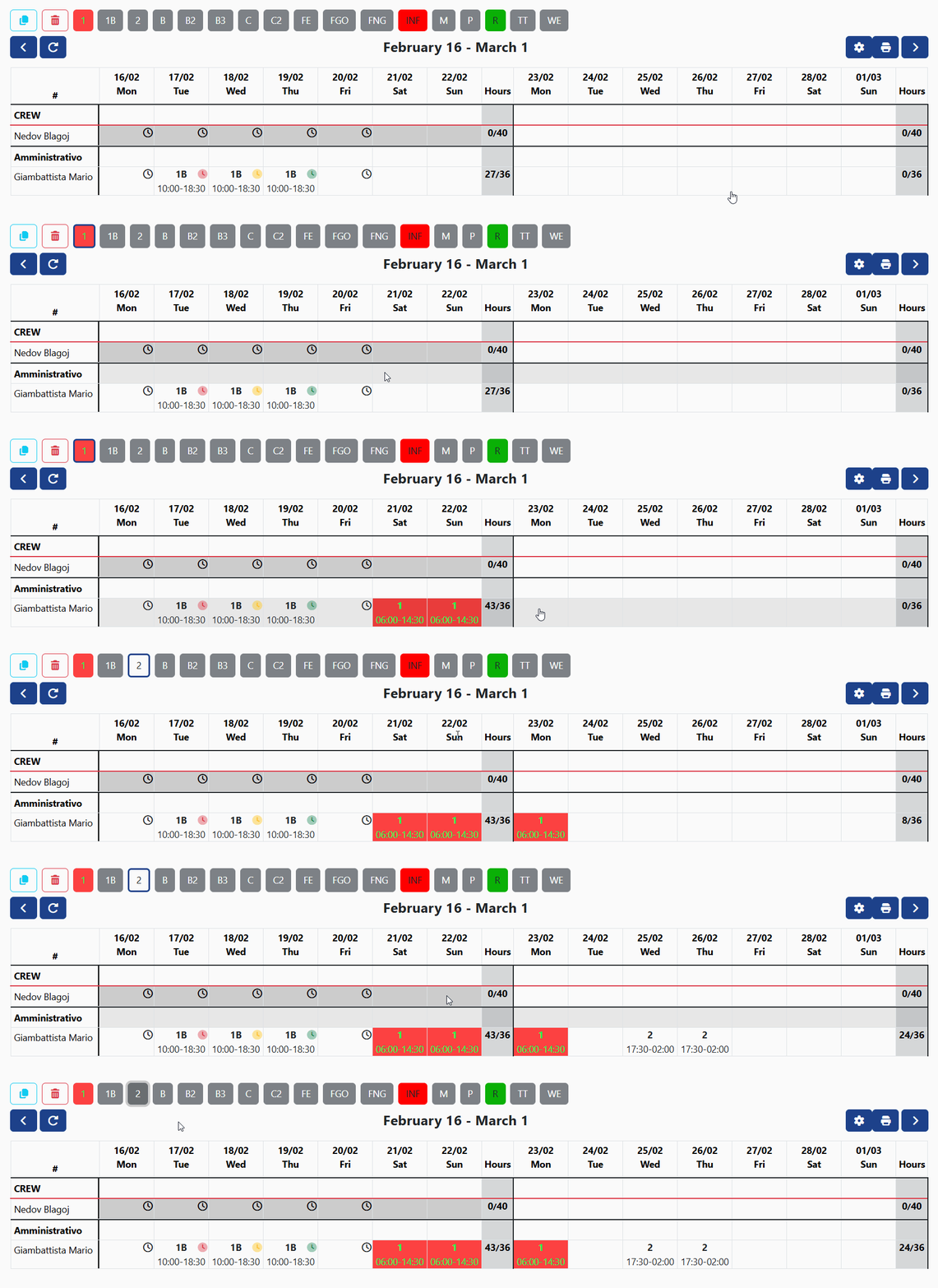
⚡ Quick bulk insertion
Quick shift types use predefined default configurations.
🗑️ Bulk deletion
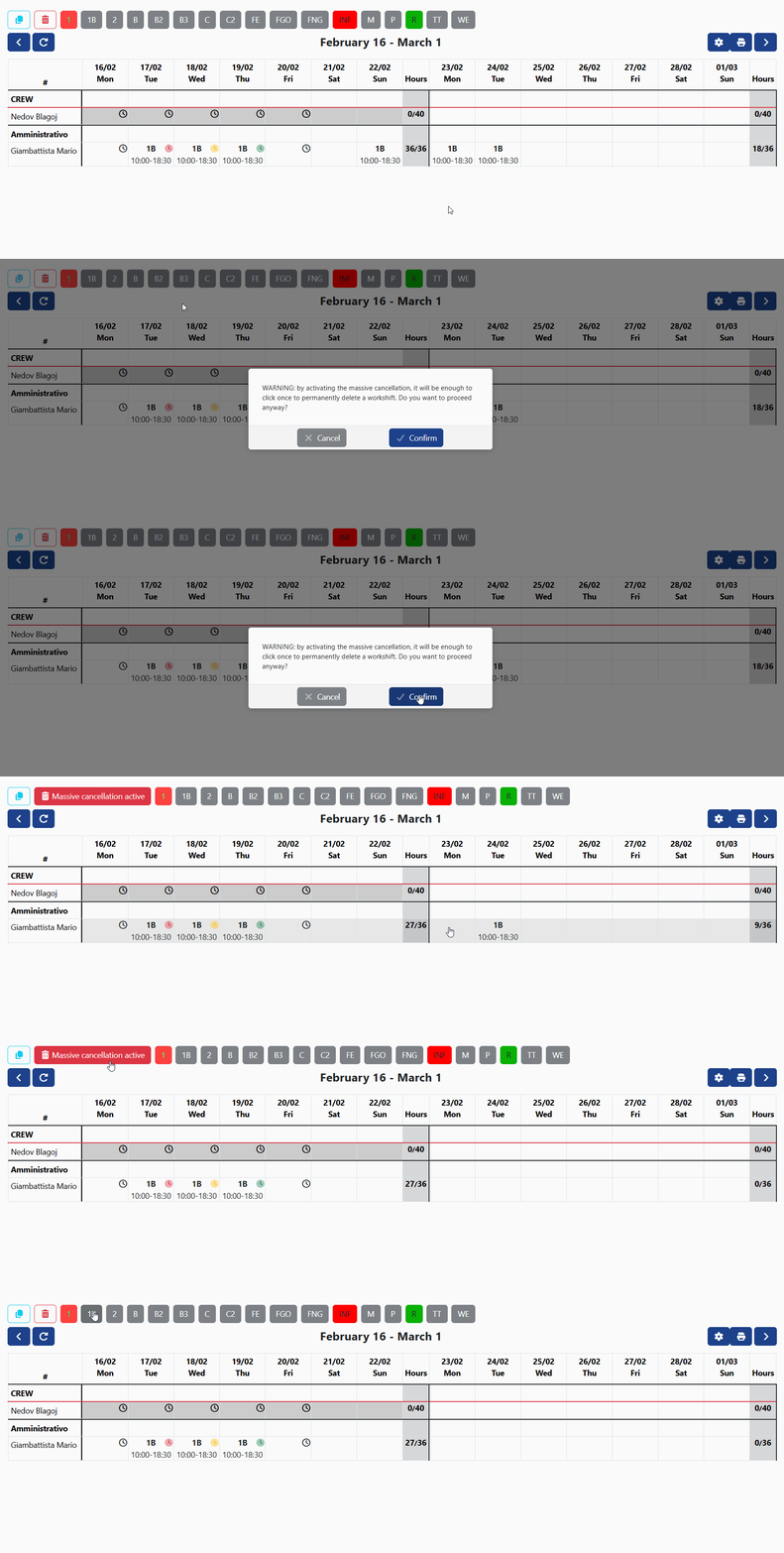
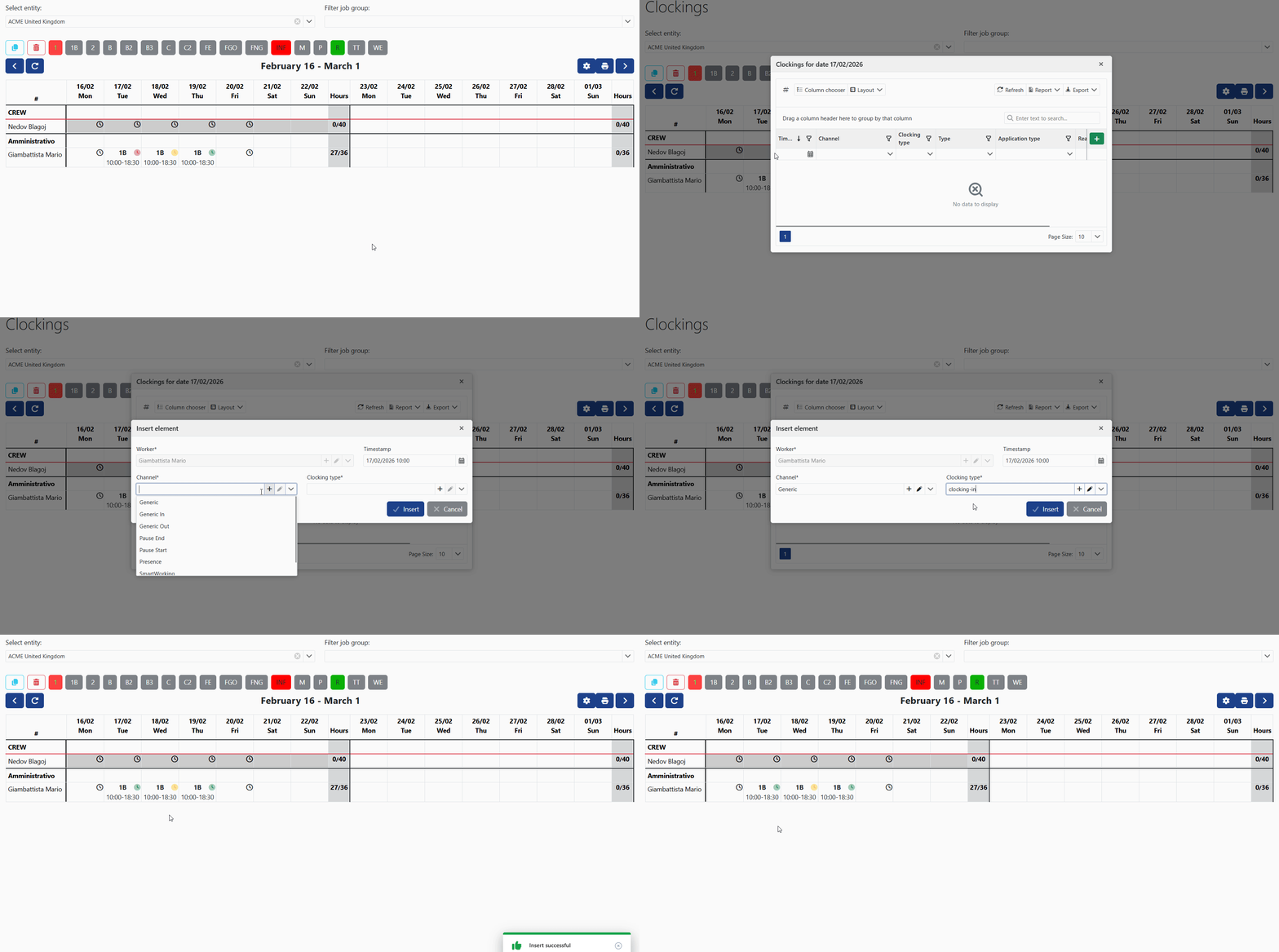
⏱️ Punches
Punches are displayed directly in the calendar and use different colors to indicate their status:
- 🟢 punch consistent with the planned shift

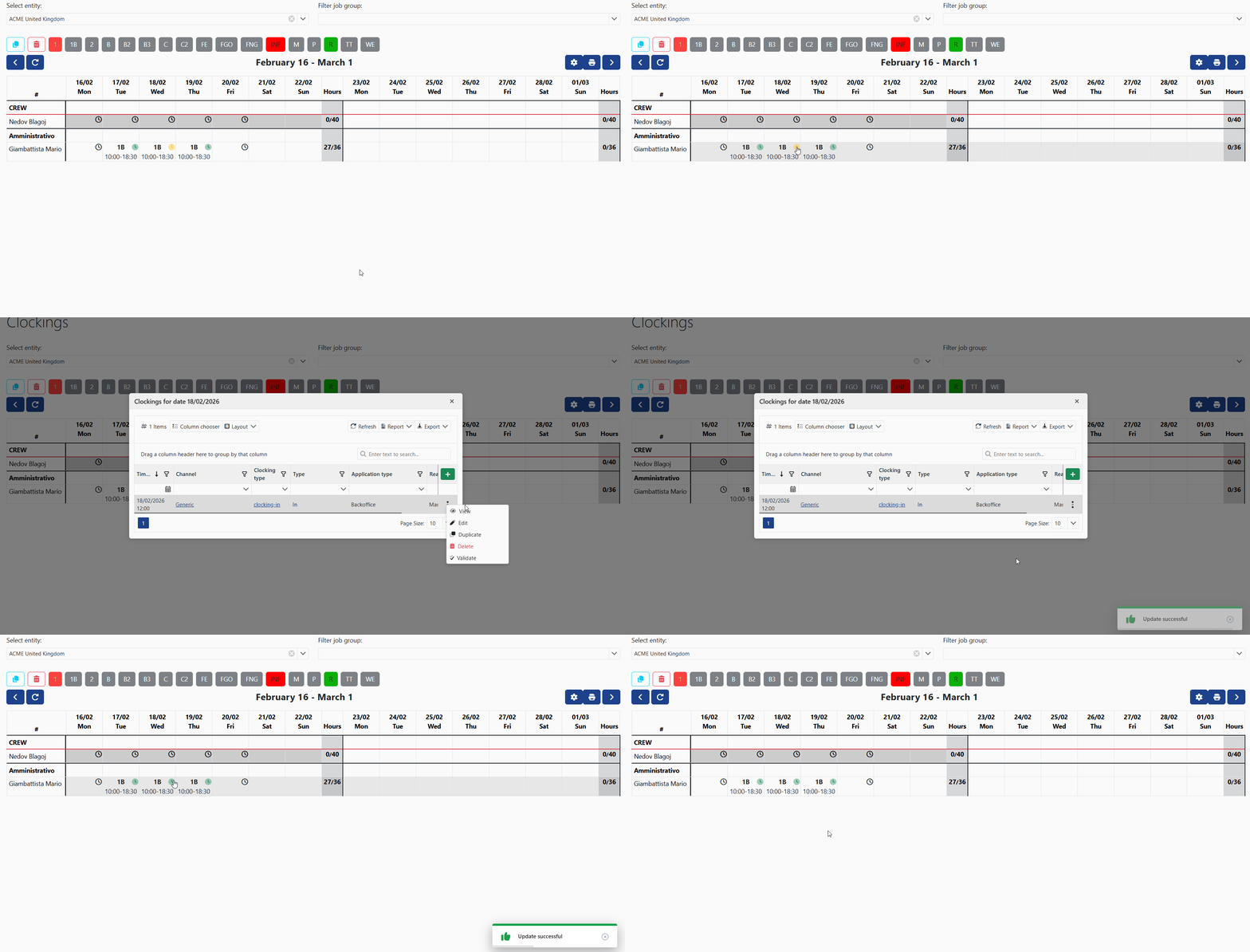
- 🟡 differences between shift and punch

- 🔴 shift without punch or punch without shift

You can also manually add a punch by clicking on the clock icon.
When a punch is highlighted in yellow, it means it is not consistent with the planned shift.
In these cases, it is possible to manually confirm the punch, validating it directly from the calendar.
👤 Worker availability
Calendar cells change status based on worker availability:
- ⬜ white cells → assignable period
- ⬛ gray cells → shift not assignable

Cells become unavailable when:
- the contract has not started yet
- the contract has ended
- the worker is assigned to another entity outside the valid period
When an assignment is active, shifts can only be assigned within the allowed dates.